Dashboard
An overview of the Dubber call recording dashboard and the information shown for each recorded call.
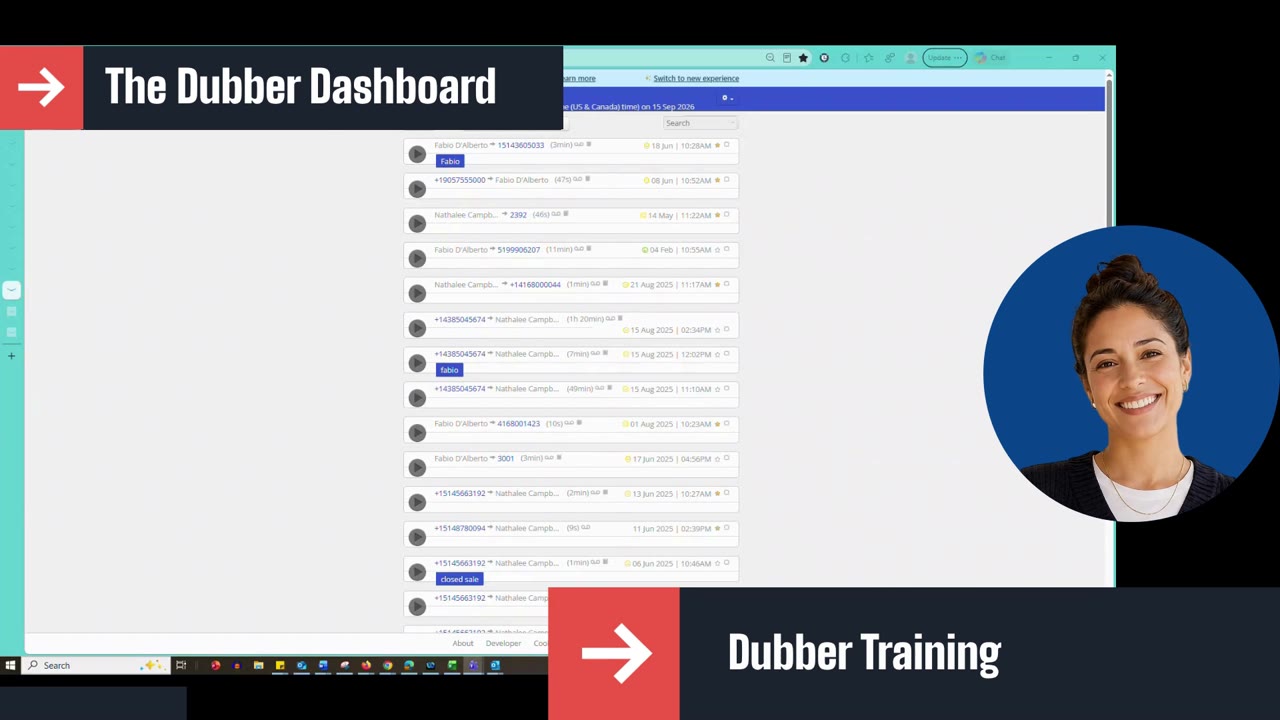
This lesson gives an overview of the Dubber recording dashboard. You will see where to find your name and last login time, how the call recording list is organized (most recent first), what each row shows (caller, recipient, call direction, duration, date and time), how to play a recording, where the filter and search options are, and how labels and tags help you organize calls.
Script: Dubber – Dashboard
After logging in, you'll arrive on the Dubber recording dashboard.
At the very top of the page, you'll see your name. You'll also see the last time you logged in, with the date and exact time of your last login.
The main section displays the call recordings available in your account. Each row represents one recorded call. Your calls are displayed with the most recent on top, in order. The information shown may include the caller and the recipient. There is also a small arrow showing the direction of the call. You'll find the call duration and the date and time the call took place.
Select the play button at the beginning of each call to listen to the recording.
At the very top of the recording list, you'll find options for filtering the calls displayed. You can also use the search button at the top right if you're looking for a particular recording.
Some recordings may include labels or tags, such as the customer's name or the purpose of the call. These help you organize and locate calls more easily.
In the next section, we'll look at how to search and filter the call recordings.
Up next
1:41 mins