
User menu
A tour of the Dubber user menu: home, recordings, account, profile, downloads, new experience, help, version and log out.
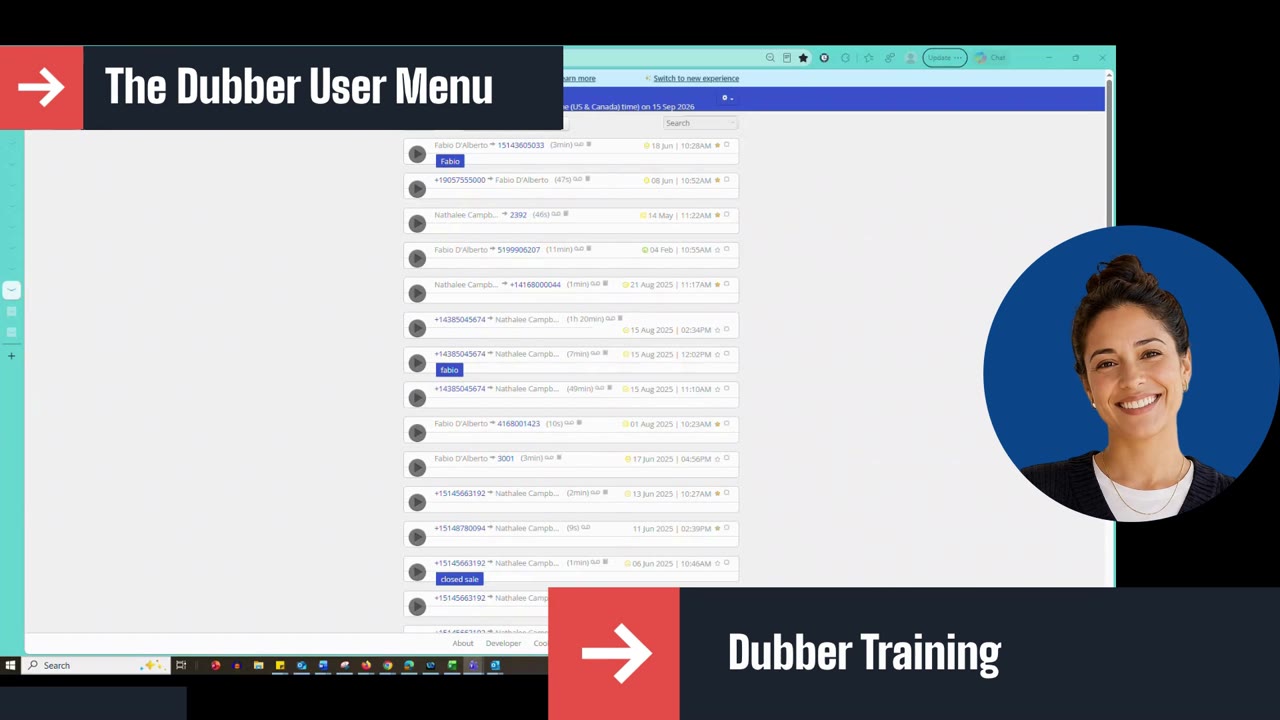
This lesson tours the Dubber user menu (the gear icon at the top right). You will learn what each option does: Home, Recordings, Account (admin-only organization settings), Profile, Downloads (bulk downloads available for 48 hours), New Experience and Classic Portal, Help (opens a ServiceNow case), Version (technical details for support) and Log out.
Script: Dubber – User Menu
Now we're going to go to the gear menu in the upper right corner. This is the user menu, and it has several options.
Home – Select Home to return to the Dubber dashboard, the original page that opens when you sign in.
Recordings – This gives you access to the list of available recordings, so all of your recorded calls. From this page, you can listen to calls, filter, or search.
Account – Select Account to access organization-level settings. Administrators can manage general account information, users, teams, retention settings, storage, recording filters, API access and AI features. The options you see depend on the user's assigned permissions, and only authorized admins should make changes in this section of the account.
Profile – Select Profile to view your assigned role and manage your personal account information. You can update your username, change your mobile number and switch your preferred language. After making any changes, click Save Changes for them to register.
Downloads – Select Downloads to access bulk recording downloads. When multiple recordings are prepared for download, they appear here as a zip file. Download the files within 48 hours, as they will no longer be available after that. If there are no prepared files, the page will say that no bulk downloads are currently available.
New Experience – Select New Experience to switch to Dubber's updated portal. It provides access to all of your recent conversations with a different layout, including call details, conversation insights and business intelligence features. To return to the original interface, select Classic Portal.
Help – Click Help to open ServiceNow, where you can open a case if there are any issues with your system.
Version – Select this to view technical information about the Dubber portal, including the current software version, browser information and the time the portal was loaded. Technical support may ask for this information when troubleshooting.
Log out – Select Log out to securely end your Dubber session. Always log out when using shared or public computers to prevent unauthorized access to your call recordings and account information.
That's it.
Up next
4:23 mins